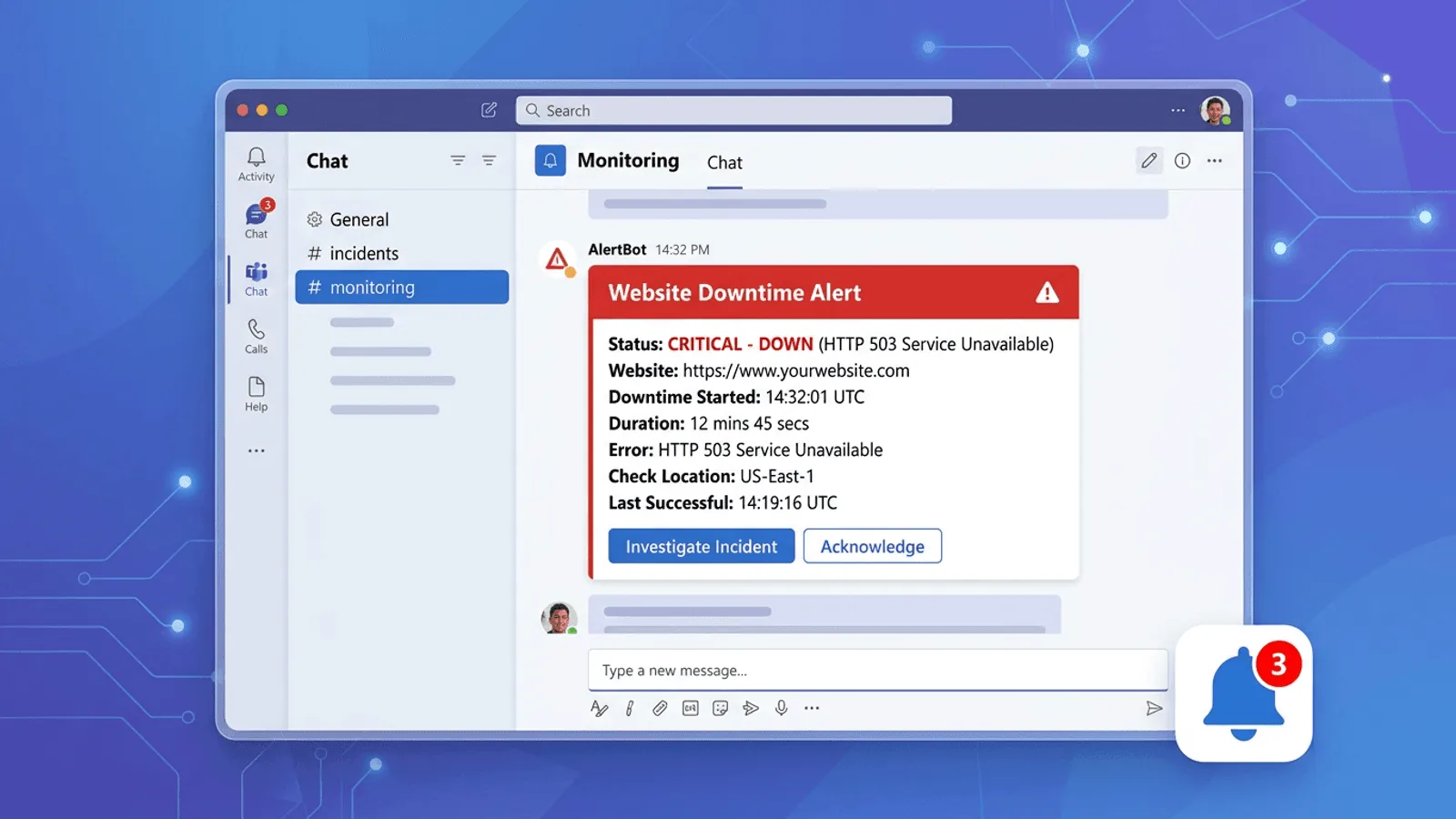
New Microsoft Teams alert integrations should use the Workflows app and its “When a Teams webhook request is received” trigger. The older Office 365 Incoming Webhook connector is no longer the current setup path: Microsoft completed its connector retirement rollout in May 2026.
This guide shows the supported Workflows approach, including authentication choices, workflow ownership, payload testing, and Adaptive Cards. Microsoft Teams is the shared coordination layer; critical incidents should still have an acknowledged escalation path outside the channel.
Why Teams for Downtime Alerts
Meet your team where they already are
If your team coordinates in Microsoft Teams, routing monitoring alerts to a dedicated channel gives responders a shared place for triage and updates.
Teams can deliver desktop and mobile notifications, but channel delivery does not prove that an on-call responder was notified or acknowledged the incident. Use an independent paging path for urgent after-hours failures.
Rich card formatting
Workflows can post messages and Adaptive Cards with structured facts and links. Keep the essential service, impact, time, region, owner, and runbook visible without requiring a click.
Existing collaboration surface
Teams may already be part of your Microsoft 365 environment, but Workflows has licensing, ownership, and throttling considerations. Confirm those constraints with your tenant administrator instead of assuming unlimited delivery.
How Teams Workflows Webhooks Work
The Workflows app, powered by Power Automate, exposes an HTTP POST URL. A flow receives the payload, optionally transforms it, and posts a message or Adaptive Card to a channel or chat. Microsoft documents the current process in Create Webhooks using Workflows.
The generated URL is a credential. The trigger can be configured for anyone, any user in the tenant, or specific tenant users; the right choice depends on whether the sender can authenticate with Microsoft Entra ID. Store the URL as a secret even when trigger authentication is enabled.
Option 1: Create a Teams Workflow From a Template
Create the receiving workflow first, then add its generated URL to the monitoring service.
Step 1: Create the workflow webhook
- Open the target team and channel in Microsoft Teams.
- Select More options (...) next to the channel, then Workflows.
- Choose Send webhook alerts to a channel or create a flow with When a Teams webhook request is received.
- Select the destination team and channel and review the trigger's authentication setting.
- Save the workflow and copy the generated HTTP POST URL.
- Record at least one co-owner or service owner so the flow does not silently stop when its creator leaves.
Microsoft's Office 365 connector retirement notice says connector-based webhooks had to migrate to Power Automate-based workflows; do not start a new integration from an old Connector tutorial.
Step 2: Add the webhook to Webalert
- Log in to your Webalert dashboard
- Go to Settings → Notification Channels
- Click Add Channel → select Microsoft Teams
- Paste your webhook URL
- Send a test notification to confirm the message appears in your channel
- Save
Step 3: Assign the channel to your monitors
- Go to any monitor's settings
- Under Notification Channels, enable your Teams channel
- Save
That's it. When a monitor fails, Webalert sends a formatted card to your Teams channel with all the alert details.
What Webalert Teams alerts look like
Webalert sends Adaptive Cards with:
- Alert status — Down, degraded, or recovered (color-coded: red for down, green for recovered)
- Monitor name — Which service is affected
- Error details — HTTP status code, response time, or error message
- Timestamp — When the failure was detected
- Region — Which check location detected the failure
- Direct link — Click through to the monitor's history and details
Recovery notifications are sent automatically when the service comes back up.
Option 2: Build a Custom Teams Workflow
Use a custom flow when you need to validate a shared secret, normalize a vendor payload, route by severity, or build an Adaptive Card before posting. The trigger accepts POST requests; the exact request schema must match the fields referenced by later flow actions.
Minimal webhook test
The template-based workflow can start with a simple body:
{ "text": "CRITICAL: example.com is down. Runbook: https://example.com/runbooks/web" }
Map those fields to the Teams message action in the workflow. If your monitor sends a different schema, add a Parse JSON or Compose action rather than assuming legacy MessageCard fields.
Sending from the command line
curl -H "Content-Type: application/json" \
  -X POST \
  -d '{"text":"CRITICAL: example.com is down"}' \
  'YOUR_WORKFLOW_TRIGGER_URL'
Adaptive Cards
Use the workflow's Post adaptive card in a chat or channel action when structured facts and buttons materially improve triage. Build and validate the card in the flow; do not assume every legacy MessageCard action maps directly because Workflows does not support all actionable-message behavior.
Use Microsoft's Adaptive Card designer to validate the card content, then bind values from the trigger in the Power Automate action. Test the actual destination because supported schema versions and actions can differ by host.
Best Practices for Teams Monitoring Alerts
Use a dedicated channel
Keep monitoring alerts out of general-purpose channels. Create #monitoring or #alerts. This keeps alerts visible to everyone who cares without disrupting unrelated conversations, and lets non-engineering staff mute it without losing important messages.
Use @mentions for critical alerts
For a critical alert, configure a supported mention in the Teams posting action and test it with the intended account or tag. Plain <at> text alone is not a reliable mention payload. For lower-severity alerts, post without mentions so the channel remains useful.
Always send recovery notifications
An unresolved alert creates uncertainty. Did someone fix it? Is it still down? A recovery message closes the loop and confirms the incident is over. Configure your monitoring tool to send recovery notifications automatically.
Require consecutive failures before alerting
A single check failure can be a transient network blip. Define confirmation from the service's detection objective—for example, consecutive failures, multiple locations, or a corroborating signal—rather than applying one fixed count to every monitor.
Layer Teams with SMS for critical alerts
Teams is useful for team-wide awareness, but notifications can be missed. For P1 outages, combine Teams with an acknowledged paging channel and escalation to the scheduled responder; no delivery channel guarantees reach.
Teams Compared With Other Alert Channels
- Teams: shared context for organizations already using Microsoft 365; depends on workflow ownership, tenant policy, and notification settings.
- Slack or Discord: similar shared-awareness role with different app and webhook models.
- Email: useful for durable low-urgency records, but inbox delivery is not acknowledgment.
- SMS or an on-call platform: useful for escalation, with carrier, device, schedule, and acknowledgment considerations.
Choose based on who must act, how quickly, and what happens when the first delivery is missed.
Setting Up an On-Call Alerting Strategy with Teams
Teams works best as your team awareness layer. Here's a practical multi-tier strategy:
For all alerts (any severity):
Send to the Teams #monitoring channel. Everyone on the team can see the state of production at a glance.
For P1 alerts (service completely down): Teams channel + SMS to on-call engineer. Use Webalert's on-call scheduling to automatically route to the right person based on rotation.
For P2 alerts (degraded, high latency): Teams channel only. Needs attention during business hours but doesn't warrant waking someone up.
For resolved events: Teams channel only. Confirms the incident is over without sending unnecessary SMS.
How Webalert Makes Teams Alerts Easy
Webalert treats Microsoft Teams as a first-class notification channel:
- Workflow URL setup — Store the generated Teams workflow URL and send a test
- Rich card formatting — Formatted alert cards with all relevant context, not just raw text
- Recovery notifications — Automatic "back up" messages when services recover
- Per-monitor channels — Route critical monitors to
#alerts, non-critical to#monitoring - Layered alerting — Combine Teams with email, SMS, Discord, Slack, and webhooks
- On-call scheduling — Define rotations so the right engineer gets paged even when teams are distributed across time zones
- Status pages — Keep customers informed while your team coordinates in Teams
Test the workflow trigger, card rendering, channel routing, ownership, recovery event, and escalation before relying on it.
See features and pricing for the full details.
Quick Setup Checklist
- Create a dedicated
#monitoringor#alertschannel in Teams - Create a webhook flow from the channel's Workflows menu
- Save the flow and copy its generated trigger URL
- Add the workflow URL to your monitoring tool
- Send a test alert and verify it appears in the channel
- Assign the Teams channel to your critical monitors
- (Optional) Configure @mentions for P1 alerts
- (Optional) Add SMS as a backup channel for on-call
The integration is ready when both a test alert and the fallback escalation reach their intended owners.