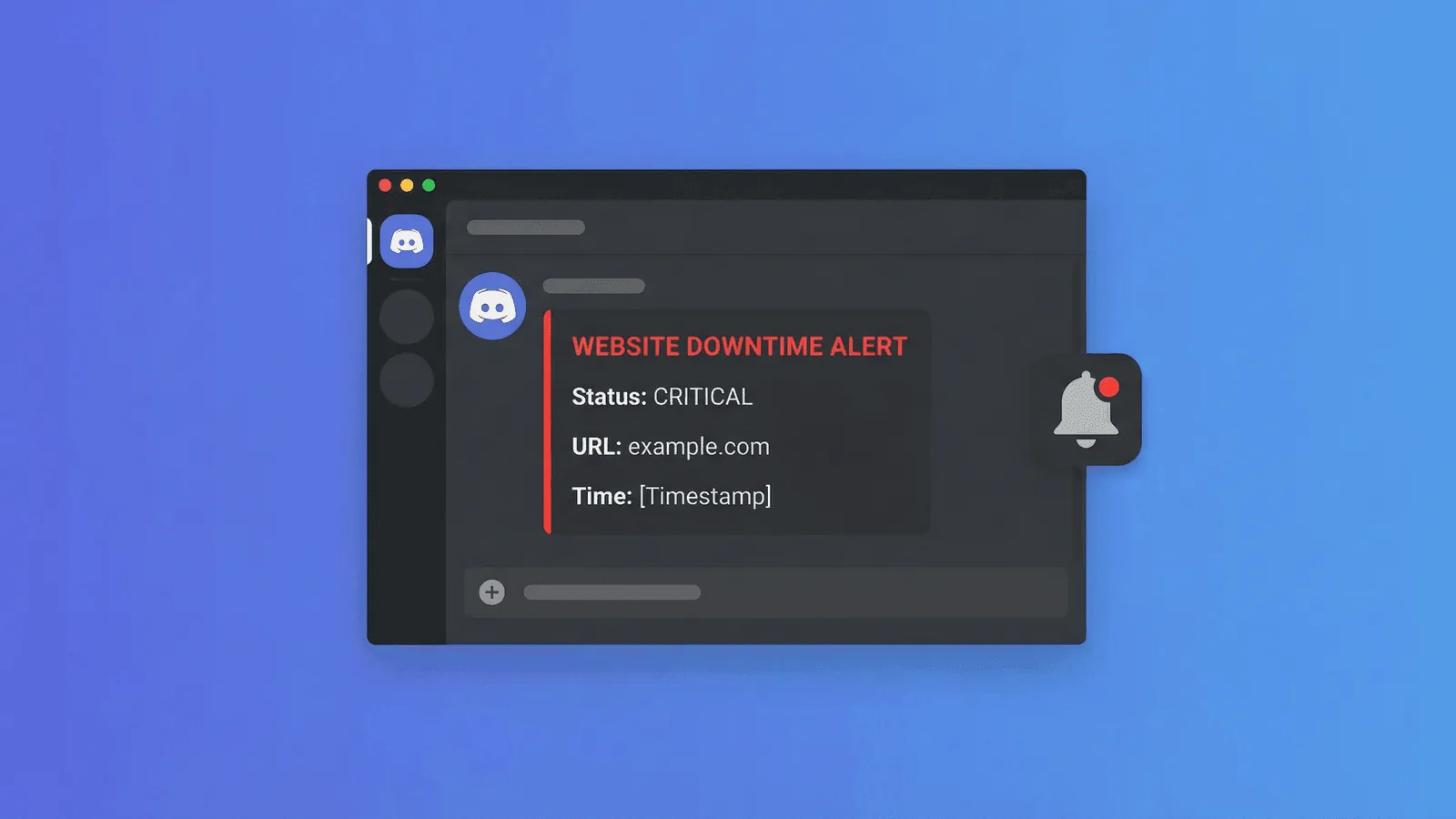
Discord is a good shared-awareness channel for teams and communities that already operate there. A channel webhook can post structured downtime and recovery messages without running a bot, while SMS or an on-call system remains the safer wake-up path for incidents that require acknowledgment.
This guide covers Discord's webhook-specific details: channel permissions, JSON payloads, embeds, mention safety, secret rotation, and rate-limit-aware retries. For channel-neutral routing and escalation, start with how to get notified when your website goes down.
Why Discord for Downtime Alerts
Your team is already there
Alert fatigue is partly a routing problem. If alerts go to a channel nobody watches, they get missed. Discord is where many development teams coordinate already — especially smaller teams, indie projects, open-source communities, and gaming companies. Putting alerts where people are is the simplest way to reduce response time.
Real-time push notifications
Discord sends push notifications to desktop and mobile. When your site goes down at 2 AM, the alert doesn't wait for someone to check email. It pings everyone in the channel (or specific roles) immediately.
Rich message formatting
Discord webhooks support embeds — structured messages with titles, descriptions, colors, and fields. Your downtime alert can include the monitor name, the failure reason, the response time, and a direct link to investigate, all in a clean card format.
No webhook-specific per-message billing
Discord does not meter ordinary channel webhook posts like SMS delivery, but server access, platform terms, rate limits, and your monitoring service's plan still apply. Cost is not a reason to route noisy state changes to an unowned channel.
How Discord Channel Webhooks Work
Discord webhooks are URLs that accept HTTP POST requests and convert them into messages in a channel. You create a webhook in your Discord server, then give the URL to your monitoring tool. When an alert fires, the monitoring tool sends a POST request to the webhook, and Discord displays the message.
No bot process is required. The webhook URL contains a token and must be treated as a secret. Discord's official Execute Webhook reference documents accepted payload fields, embeds, files, components, and response behavior.
The flow
Monitor detects failure
    → Sends HTTP POST to Discord webhook URL
        → Discord displays message in your channel
            → Team sees alert and responds
Option 1: Using Webalert (Recommended)
Webalert has built-in Discord integration — no custom webhooks or middleware needed.
Step 1: Create a Discord webhook
- Open your Discord server
- Go to the channel where you want alerts (e.g.,
#monitoringor#alerts) - Click the gear icon (Edit Channel) → Integrations → Webhooks
- Click New Webhook
- Give it a name (e.g., "Webalert Alerts")
- Copy the webhook URL — it looks like:
https://discord.com/api/webhooks/1234567890/abcdef...
Step 2: Add the webhook to Webalert
- Log in to your Webalert dashboard
- Go to Settings → Notification Channels
- Click Add Channel → select Discord
- Paste your webhook URL
- Send a test notification to verify it works
- Save
Step 3: Assign the channel to your monitors
- Go to any monitor's settings
- Under Notification Channels, enable your Discord channel
- Save
That's it. When the monitor detects a failure, you'll get a formatted alert in your Discord channel with the monitor name, status, and details.
What Webalert Discord alerts look like
Webalert sends rich embeds with:
- Alert type — Down, degraded, or recovered
- Monitor name — Which URL or service is affected
- Status details — HTTP status code, response time, error message
- Timestamp — When the issue was detected
- Direct link — Click to see the monitor's history and details
Recovery notifications are also sent when the service comes back up, so you know the incident is over.
Option 2: Custom Webhook Setup
If you're using a monitoring tool that supports generic webhooks (or building your own), you can send Discord alerts directly.
Discord webhook message format
Discord webhooks accept JSON payloads. For a simple text message:
{
  "content": "🔴 **ALERT** — yoursite.com is DOWN (HTTP 503)"
}
For a richer embed:
{
  "embeds": [
    {
      "title": "Monitor Alert: yoursite.com",
      "description": "Your website is not responding.",
      "color": 15158332,
      "fields": [
        { "name": "Status", "value": "DOWN", "inline": true },
        { "name": "HTTP Code", "value": "503", "inline": true },
        { "name": "Response Time", "value": "Timeout (30s)", "inline": true },
        { "name": "Checked From", "value": "US East, EU West", "inline": false }
      ],
      "timestamp": "2026-03-02T14:32:00.000Z"
    }
  ]
}
The color field accepts decimal color values: 15158332 is red (alerts), 3066993 is green (recovery).
Sending the webhook
curl -H "Content-Type: application/json" \
  -X POST \
  -d '{"content": "🔴 yoursite.com is DOWN"}' \
  https://discord.com/api/webhooks/YOUR_WEBHOOK_URL
Rate limits and delivery responses
Discord applies rate limits and returns headers describing the current bucket. Do not hardcode one global requests-per-second assumption: inspect the response, honor Retry-After on 429, use bounded backoff, and avoid retrying permanent 4xx errors. Add ?wait=true during integration tests when you need the created message in the response; otherwise a successful execution may return no message body.
Best Practices for Discord Monitoring Alerts
Use a dedicated channel
Don't send alerts to #general. Create a dedicated #monitoring or #alerts channel. This keeps alerts visible without drowning out conversations, and lets people mute the channel when they're not on-call.
Set up role mentions for critical alerts
For critical alerts, mention a restricted role such as @on-call; send warnings without mentions. Discord's webhook payload supports allowed_mentions, which should explicitly limit what user or role IDs the message may ping. Never interpolate arbitrary response text into a message that can mention @everyone, users, or roles.
You can configure this in Webalert by setting up different notification channels for different severity levels, or in custom webhooks by including role mentions in the message content:
{
  "content": "<@&ROLE_ID> 🔴 **CRITICAL** — yoursite.com is DOWN"
}
Replace ROLE_ID with your Discord role's ID (enable Developer Mode in Discord settings, then right-click the role to copy its ID).
Send recovery notifications
Always notify when the issue is resolved. An alert without a corresponding recovery creates uncertainty — is it still down? Did someone fix it? Was it a false alarm? Recovery messages close the loop.
Include actionable context
A good alert tells the responder what to do next. Include:
- Which service is affected
- What the failure is (status code, timeout, etc.)
- A link to the monitor dashboard or runbook
- Who to escalate to if the first responder can't fix it
Don't alert on every blip
Define confirmation from the monitor's detection objective: consecutive failures, agreement across locations, or a corroborating signal. One fixed count does not fit both a low-traffic page and a critical API.
Discord Compared With Other Alert Channels
- Discord: shared awareness for teams and communities already using a server; rich embeds and role mentions, but notification settings vary by member.
- Slack or Teams: similar coordination role with different installation, identity, and administration models.
- Email: useful for durable, lower-urgency records; inbox delivery is not acknowledgment.
- SMS or an on-call platform: useful for escalation, with carrier, device, schedule, and acknowledgment considerations.
Use independent paths when one channel failing or being muted would leave a critical incident unowned.
Combining Discord with Other Alert Channels
Discord is great for team awareness, but it shouldn't be your only alert channel. Build a layered alerting strategy:
For all alerts
Send relevant state changes to Discord so subscribed team members share context. This is the awareness layer, not proof of acknowledgment.
For critical alerts (site down, API down)
Also page the scheduled responder through an acknowledged escalation path. Test the actual device and fallback behavior; no channel guarantees attention.
For warnings (high response time, cert expiring)
Discord only. These need attention during business hours but don't warrant waking someone up.
For resolved notifications
Discord only. Confirm the incident is over without sending unnecessary SMS/calls.
How Webalert Makes Discord Alerts Easy
Webalert supports Discord as a first-class notification channel:
- One-click setup — Paste your Discord webhook URL, send a test, done.
- Rich embeds — Formatted alerts with monitor name, status, response time, and check region.
- Recovery notifications — Automatic "back up" messages when the issue resolves.
- Per-monitor channels — Send critical monitor alerts to
#alertsand non-critical ones to#monitoring. - Combined with other channels — Use Discord alongside email, SMS, Slack, Microsoft Teams, and webhooks for layered alerting.
- Rate limit handling — retry-aware delivery designed to respect Discord responses and recover from transient throttling.
After configuration, test down, recovery, mention restrictions, webhook rotation, and failure handling before relying on the channel.
See features and pricing for the full details.
Quick Setup Checklist
- Create a
#monitoringchannel in your Discord server - Create a webhook in the channel's Integrations settings
- Add the webhook URL to your monitoring tool (Webalert, or your custom setup)
- Send a test alert to verify the message arrives
- Assign the Discord channel to your monitors
- (Optional) Create an
@on-callrole and configure critical alerts to mention it - (Optional) Add SMS as a backup channel for critical alerts
The setup is complete only after a test proves the intended channel, role mentions, message context, and recovery path all work.